I’ve got two laptops 1. One runs Debian Testing and is used almost every day. The other one runs Windows 11, I only use it when I need to use Windows-only software 2. A few days ago I booted it to get screenshots for the disk encryption post and it prompted me to update to 26H2. I wanted to check if it was a worthy update and whether there were any downsides. Which means skipping the hype (more AI everywhere) and digging a bit deeper.
Or at least that’s how I began writing this post, but it moved in a different direction. Microsoft announcements tend to mix things that arrived in the latest release with stuff that came as standard updates since the previous point release, and even those that were introduced earlier and expanded now. I decided not to bother checking which change appeared when; sometimes it’s not even possible - do preview updates or experimental features that need to be enabled count? Instead, treat it like a list of changes in Windows 11 in recent years. The 26H2 which has been out since the end of September is quite small.
So, sorry for the clickbait. 26H2 might not be that interesting, but the collected changes are, for people who care about security, privacy and tinkering with their system. Some of them go in the right direction, some are a step back.
Short version
Good: built-in Sysmon, Administrator protection (improved privilege elevation), Smart App Control without reinstalling, post-quantum crypto, a safer mode for batch files, policy-based removal of preinstalled apps and a few small improvements.
Questionable: old cross-signed drivers stop loading.
Bad: running without the Microsoft account got even harder, WMIC is gone for good, more AI and Copilot in File Explorer and the taskbar, settings backup to the cloud is on by default for commercial devices.
The good
Administrator protection
On Linux (and Unix systems that predate it) it’s long been a good practice to use a standard account for most of the work and only temporarily switch to “root” (the account that has full admin rights). Windows has a complicated history of admin rights. In old versions everything ran as admin. Vista introduced UAC (User Account Control), that prompted users to confirm privileged operations, with annoying frequency. Windows 7 reduced the frequency of prompts to a usable level - but it also means in some situations elevated rights are given automatically (it’s now configurable with a slider, from least to most prompts).
UAC does a moderately good job of protecting the system. Try going to shady areas of the web with Windows 98 and it will be attacked by malware so hard that its virus will catch a virus. Modern Windows has a chance to survive - for several reasons, UAC is one of them. But it’s far from perfect. Microsoft itself said it’s not a security boundary, and there are dozens of known UAC bypasses.
Administrator protection is an attempt to fix this. When you elevate, Windows creates a separate, temporary admin token tied to a hidden profile (separate from your normal account). When the task is done, the rights are gone.
It’s not exactly new - it’s been available as a preview for a year, now it’s pushed to all systems, but off by default. It can be enabled through Group Policy or Intune. There were many reports of compatibility problems, since the elevated processes see a different user profile. Which means they won’t see your login sessions, your environment variables etc. - quite like switching to root on Linux. Good for security, but often not what the app expects. Microsoft says not to enable it if you use Hyper-V (WSL mostly works). Many other features fail, better check the list before enabling it on your main machine.
Smart App Control without reinstalling
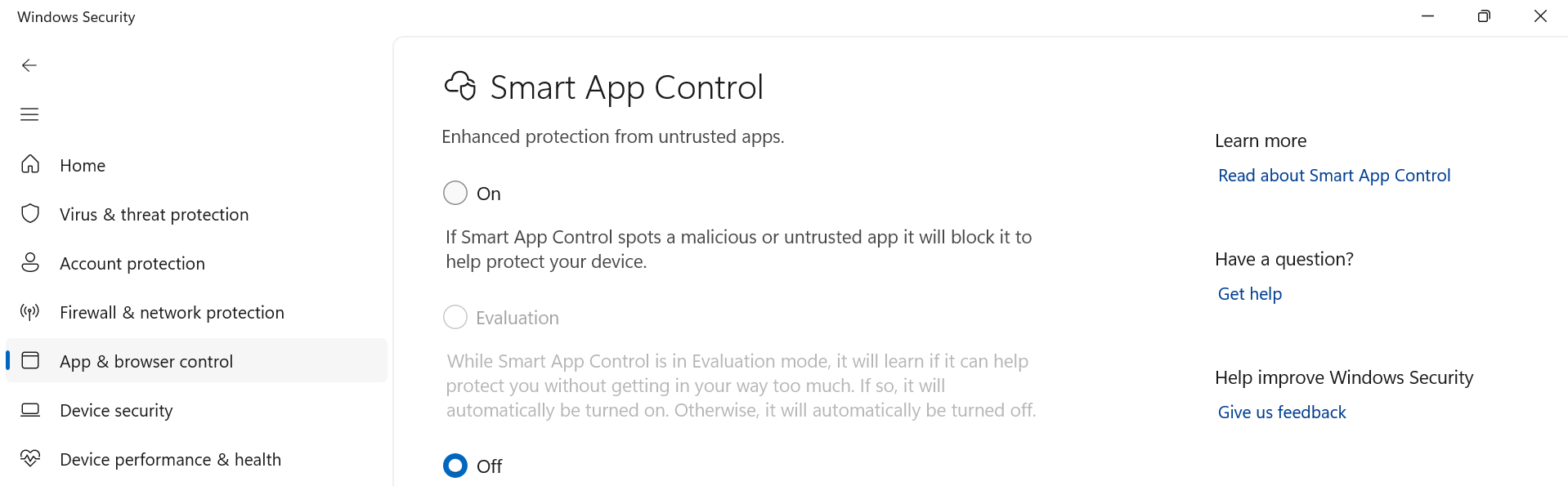
Smart App Control blocks unknown and unsigned applications. Essentially, it’s asking Microsoft whether it is OK to run this app - similar to what iOS does and Android attempts to do. It improves security - it’s harder (but not impossible) to run malware. But you also give away control of the device you own.
Previously you had to reinstall Windows to turn it on. Now it can be toggled at any time. That makes it usable for experimenting. I generally don’t like the idea of Microsoft deciding whether I’m allowed to run an open source app. But it’s a reasonable option for less technical family members.
It’s a pity you cannot override Smart App Control for specific apps only. Even if you only want to run a single untrusted app, or if you want to compile something yourself, you have to turn it off.
Post-quantum cryptography
Windows now supports ML-KEM and ML-DSA (FIPS 203 and FIPS 204), the NIST post-quantum algorithms I wrote about in The state of post-quantum cryptography at the end of 2024. Well, that took Microsoft some time. New algorithms are available through CNG (Cryptography Next Generation API) and .NET. Nothing an end user will notice, but it’s an important step.
Removing preinstalled apps with policy
Admins have a supported way to get rid of the stuff they never asked for - but only on Enterprise or Education edition, and only with an MDM or a domain. All animals are equal, but some animals are more equal than others.
Sysmon is now part of Windows
Sysmon (System Monitor) has been a part of the Sysinternals suite for over a decade and every blue team knows it. It logs process creation with full command lines and hashes, network connections, driver loads, registry changes, file creation and a lot more, all into the Windows Event Log. Essentially a free EDR sensor, but you need something (usually a SIEM, or at least a script) to read the logs.
Until now, you had to download it separately and install it as a service. Now it’s built in. It’s off by default, you need to enable it and give it a configuration file.
Most home users don’t need it. In companies that have a security team - it just saves one step of installing Sysmon. Not a big deal, but it shows that Microsoft treats security more seriously.
Small things
- Windows Hello Extended Security now works with external fingerprint readers (useful on desktops).
- Passkeys can be stored in third-party password managers.
- File Explorer opens a few more archive formats:
cpio,xar,uuandnupkg. - Fewer restarts: optional updates get installed together with the monthly security update.
- Batch files can be protected from change while they’re running (normally, cmd will just read the new contents).
Questionable
Cross-signed drivers are no longer trusted
In the old days, users downloaded the drivers themselves (or, in the even older days, used a CD-ROM or a floppy disk), but that sometimes resulted in installing malware. Later, Windows would try to find the driver for you (but there’s still an option of providing one). And since 64-bit Vista, Windows only loads kernel drivers that are signed. There’s a good reason for it: drivers run with the highest privileges and keeping buggy code (or worse, malware) away from the OS kernel is definitely the Right Thing.
Initially, there were 2 ways of getting the driver signed:
- Windows Hardware Compatibility Program - basically, you upload the driver to Microsoft, they sign it (supposedly after testing, at the very least - they know who uploaded it).
- Cross-signing - you buy a certificate from one of the commercial certificate authorities (VeriSign, DigiCert, Thawte etc.) and sign the driver yourself.
The second way was easier for the vendors, but less secure. Anyone could register a company and buy a driver-signing certificate; legitimate certificates were sometimes stolen. Therefore, the programme was phased out. For years you weren’t able to sign new drivers this way, but old drivers continued to work. This has been slowly changing - in general, Windows doesn’t load cross-signed drivers since April 2026, but there were exceptions. If I understand it correctly, Windows initially loads the drivers and only logs violations, but after 250 hours it begins enforcing (it’s one of the places where the docs contradict each other).
Why it’s good: malicious drivers are one of the worst types of malware. This doesn’t solve the problem 100% (some malware exploits real, Microsoft-certified drivers that turned out to be vulnerable), but makes this type of attack much harder.
Why it’s bad: some old, but still usable devices won’t work anymore. And you might not agree with “Microsoft decides what hardware I can use” on generic principles.
Most people won’t be affected. There has been a long phase-out, and many devices don’t need a kernel driver anyway - they work with a generic, Microsoft-provided driver that covers a class of devices, such as “USB storage device” or “pointing device”.
If you are affected there are some workarounds. Mostly intended for developers who write and test new drivers, but you can use them for your old device too.
- Disable driver signature enforcement at boot: Advanced startup, then Startup Settings, then F7. The driver will load, but only until the next restart, so you need to repeat it every time. Fine for a one-off job, such as getting the data out of an old device, not for daily use.
- Remove the new policy:
CiTool.exe --remove-policyand a restart brings back the old behaviour - cross-signed drivers load again, with Secure Boot still on. It doesn’t help with completely unsigned drivers. - Test signing:
bcdedit /set testsigning onand sign the driver with your own test certificate. This is how drivers are normally developed, but it requires Secure Boot to be disabled, and Windows will show a “Test Mode” watermark on the desktop. - Kernel debugging: with a debugger attached (usually to a virtual machine), Windows is lenient about driver signatures. Only useful for developers.
The bad
Local accounts
The war on local accounts continues. Microsoft wants everyone to use Microsoft accounts (personal or Entra ID). In Windows 10, you could simply choose a local account. In early Windows 11 this option wasn’t normally present, but you could enable it by disconnecting from the internet at the right moment, running OOBE\BYPASSNRO in the terminal and a few other ways. Each update removed the best-known tricks. In September someone found a new workaround - the “Learn more” link on the sign-in screen in Windows 11 Home - reports say it no longer works on a fresh 26H2 ISO.
What still works: signing in with a Microsoft account, creating a local account afterwards and deleting the Microsoft one. Perhaps tools like Rufus that preconfigure an unattended setup. All of these will probably keep working, at least for a while, but each release makes it more annoying.
I usually use the Microsoft account anyway (I use Linux when I care about privacy), but I’m against forcing it. A computer should not need an online account to work.
WMIC is gone
WMIC (Windows Management Instrumentation Command-line) has been on its way out for years. Deprecated in Windows 10 21H2, disabled by default in 23H2 and 24H2, removed during the upgrade to 25H2 (but you could still add it back as a Feature on Demand). Since the August 2026 update, it’s not even available as a Feature on Demand.
The replacement is PowerShell. Not a big loss, and PowerShell is a better tool anyway, but plenty of old scripts and admin one-liners (wmic bios get serialnumber anyone?) will now fail. Microsoft offers a temporary workaround - a package that copies the WMIC files back to System32\wbem - but they themselves say it’s not a secure, long-term solution.
More AI everywhere
File Explorer gets AI actions: editing images and summarising documents. The taskbar can show the progress of AI agents. There’s an agent in Settings that configures the system based on a description. And the “Ask Copilot” box replacing the classic search on the taskbar was planned too - although Microsoft paused it in August after a lot of negative feedback.
To be fair, most of it is optional or requires a paid licence. Recall, the most controversial feature, is opt-in (and only on Copilot+ PCs). But every new AI integration is another component that sends data somewhere and another attack surface, Microsoft itself admits that agentic features bring “novel security risks” (great, we won’t be stuck with old and boring ones). And it’s another thing you need to check after every update to see if it got re-enabled.
Settings backup on by default
For commercial devices, Windows settings backup is now enabled by default - settings and the list of Store apps go to the cloud. Admin policies are respected, so in a managed environment you can turn it off. It makes sense for companies replacing laptops, but defaults matter, and the direction is always the same: more data in Microsoft’s cloud unless you opt out.
Known issues
As usual, there are some edge cases. Most people won’t be affected, but you might be unlucky enough to have a combination of hardware, software or settings that won’t work anymore. Check the release health page for the current status.
Should you upgrade?
Since 26H2 is mostly an enablement package, you already have the majority of these features if your 24H2/25H2 is up to date. The upgrade itself is low risk and it gives you a fresh support window, so yes. From the security point of view, the direction is right. I remember how unstable and vulnerable Windows was in the early 2000s. From the privacy and control point of view, it’s always a step back. The default setup is to rely more and more on online services, though you can still opt out. If you have old hardware relying on legacy drivers, be prepared for problems.
Sources:
- What’s new in Windows 11, version 26H2 for IT pros (Microsoft)
- Removing trust for the cross-signed driver program (Microsoft)
- The Windows Driver Policy (Microsoft)
- WMIC removal from Windows (Microsoft)
- Windows 11 26H2 known issues and notifications (Microsoft)
- Microsoft pauses Copilot on Windows 11’s taskbar (Windows Latest)
- Windows 11 Home OOBE “Learn More” local account bypass reportedly closed (WindowsForum)
-
That is, two laptops that are relatively new, have a working battery and can be used for all the standard tasks. If I also include those that I occasionally run to test something, then I’m not sure about the number. ↩︎
-
Or if too much time has passed from the previous boot. Then I’d start it to install updates and sync my files. ↩︎